If the File Can't Be Selected or Uploaded
Open the recording on your device and check that it plays to the end. Compare the size with the current limit in the upload form, and the format with the latest list on the "Audio to Text" page. Sometimes the extension is familiar, but the internal codec isn't supported.
If the previous attempt ended in error, refresh the page and try again in the latest browser version. If the issue persists, prepare a copy in a confirmed format, keeping the original.
When comparing tools, check the compatibility of your recordings in advance. This is one of the criteria for choosing a transcription service.
If Processing Completes Without Useful Text
Ensure the file contains clear speech and the correct audio track is selected. Music, silence, screen recordings without commentary, or voices that are too quiet won't provide a full transcription.
Listen to a short section manually. If the words are almost indistinguishable, it's best to improve the source first or manually transcribe the critical fragment. More on the impact of noise and recording quality can be found in the article "What Affects Speech Recognition Accuracy".
If the video link isn't working
The link should lead to a supported public video. Private, deleted, age-restricted, or region-restricted videos may be inaccessible. A channel address, search page, or playlist is not the same as a link to a specific video.
For YouTube, use the "YouTube to Text" page. Ensure the video exists and plays without logging in. This is a useful check but doesn't guarantee technical accessibility for the service. For other platforms, first check the list in the upload form.
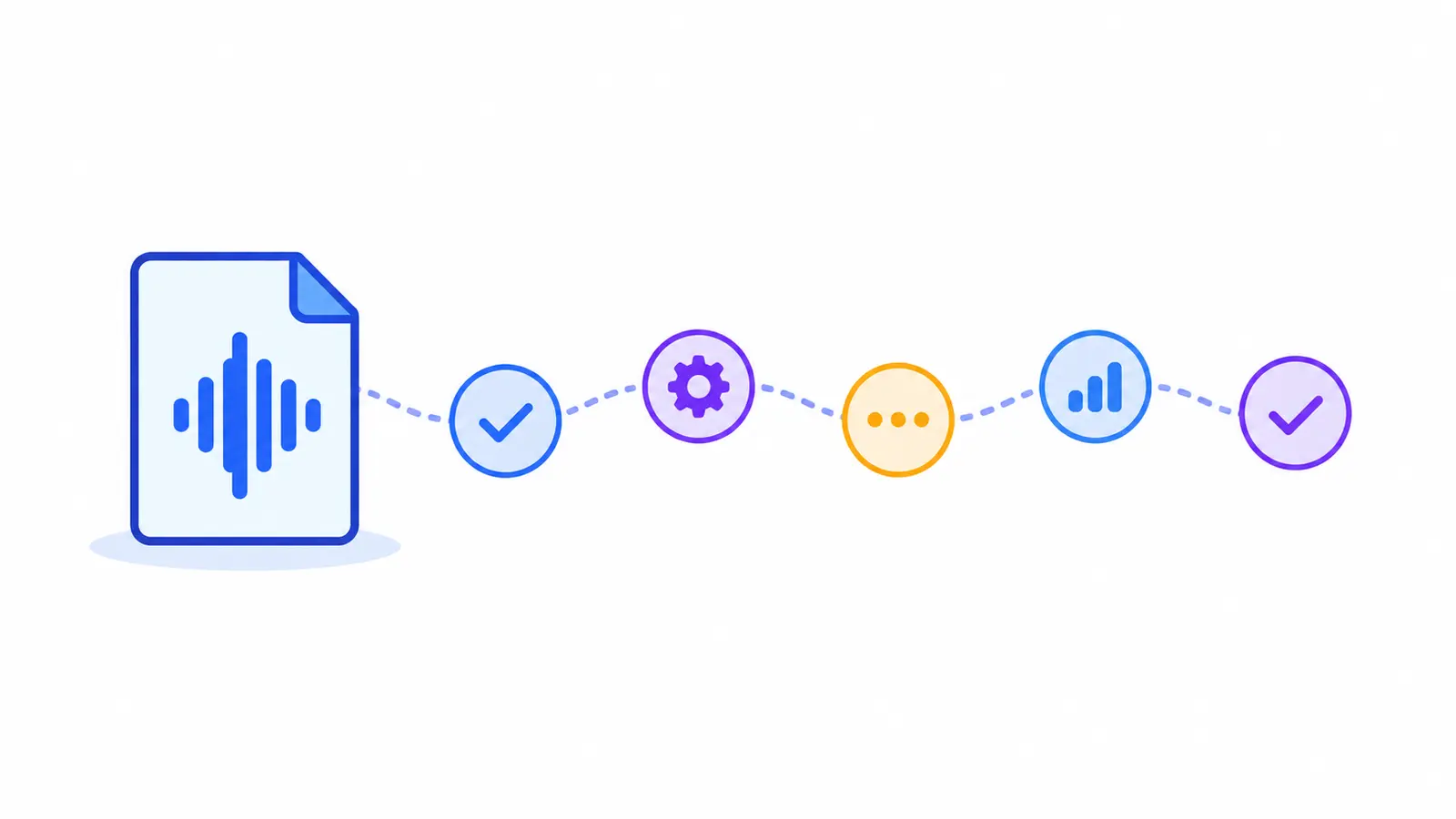
Identify the source
FileThe recording is already on your device.
LinkThe address leads to a specific video.
Check availability
FileOpens and plays to the end.
LinkThe video exists and is accessible without login.
Verify processing conditions
FileSupported format and acceptable size.
LinkSupported platform and appropriate access settings.
Listen to the audio
The desired track has audible, clear speech.
Try again
After fixing the issue, start processing again. If the error persists, prepare support data.
If link processing is unavailable, you can use an authorized local copy. The steps are described in the guide on how to extract text from a finished video file.
Safe next steps
Don't upload sensitive recordings to random converters or make private videos public just for testing. If internal policies allow, use a local copy and the standard upload form on the service.
When contacting support, provide the source type, format, size, error stage, and message text. Do not send the file itself unless agreed upon and necessary to resolve the issue.
How to know the issue is fixed
The disappearance of the error is just the first check. Ensure the entire recording is processed: the beginning and end are in the text, timestamps lead to the correct segments, and the downloaded TXT opens and contains the result.
Compare several sections with the original, including the area where the issue previously occurred. If a part of the speech is missing or distorted, go back to checking the sound and audio track.
Practical Checklist
- Open the file on your device and check playback.
- Verify the size, format, and presence of speech.
- For links, check the accessibility and address of the specific video.
- If an error occurs, try again in the latest browser version.
- Provide support with diagnostic data without unnecessary personal information.
How to Complete the Task in Transkribator
On the "Audio to Text" page, upload the prepared recording and wait for the result. First, assess the overall meaning, then check names, numbers, and terms by timestamps.
Download the TXT file and continue editing in your usual tool. Keep the original until you verify the result and finish working with the recording.
Main Points
- Diagnosis starts from the source itself.
- For links, video accessibility and the address of the specific video are important.
- Renaming the extension does not replace conversion.
- Corrections are confirmed by checking the text, timestamps, and downloaded file.
Frequently Asked Questions
Why isn't the YouTube link working?
The video may be private, deleted, restricted, or the link doesn't lead to a specific video. Even if the video opens for you, it might be technically inaccessible for automatic processing.
Can I just rename the extension?
No. Renaming does not change the container or codec. If you need to change the format, export or convert a copy of the file, keeping the original.
What to report to support?
Format, size, source type, stage of failure, browser, and exact error text. Include what checks have already been done: this helps avoid repeating the same actions.
Do I need to publish a private video?
No. This could violate confidentiality. Use an authorized local copy or another agreed-upon method, maintaining access restrictions to the original.