Extension, Container, and Codec
An extension is the end of a file name, like .mp4. A container combines tracks and metadata, while a codec determines how the audio or video is encoded. Two files with the same extension may contain different codecs and behave differently when uploaded.
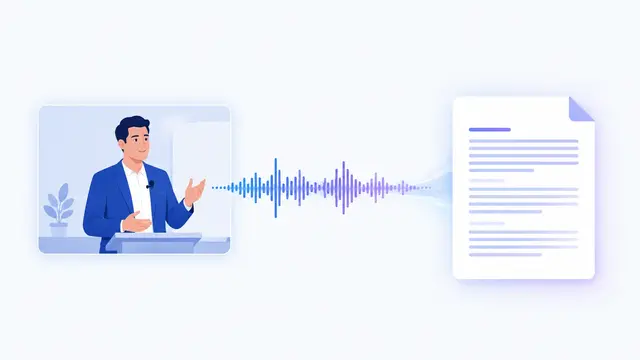
For example, MP4 and MOV are containers. Inside the video, there's a separate audio track, and it's this speech that gets turned into text. A detailed explanation of how such files work can be found in the MDN guide on media containers.
File Container e.g., MP4
Combines video, audio, and recording data.
Audio Track
Sound is encoded with a specific codec.
Clear Speech
Words to be transcribed into text.
If a file opens locally but doesn't upload, there might be a codec incompatibility or a damaged container. Successful playback on your computer doesn't guarantee processing by the service.
Popular Audio Sources
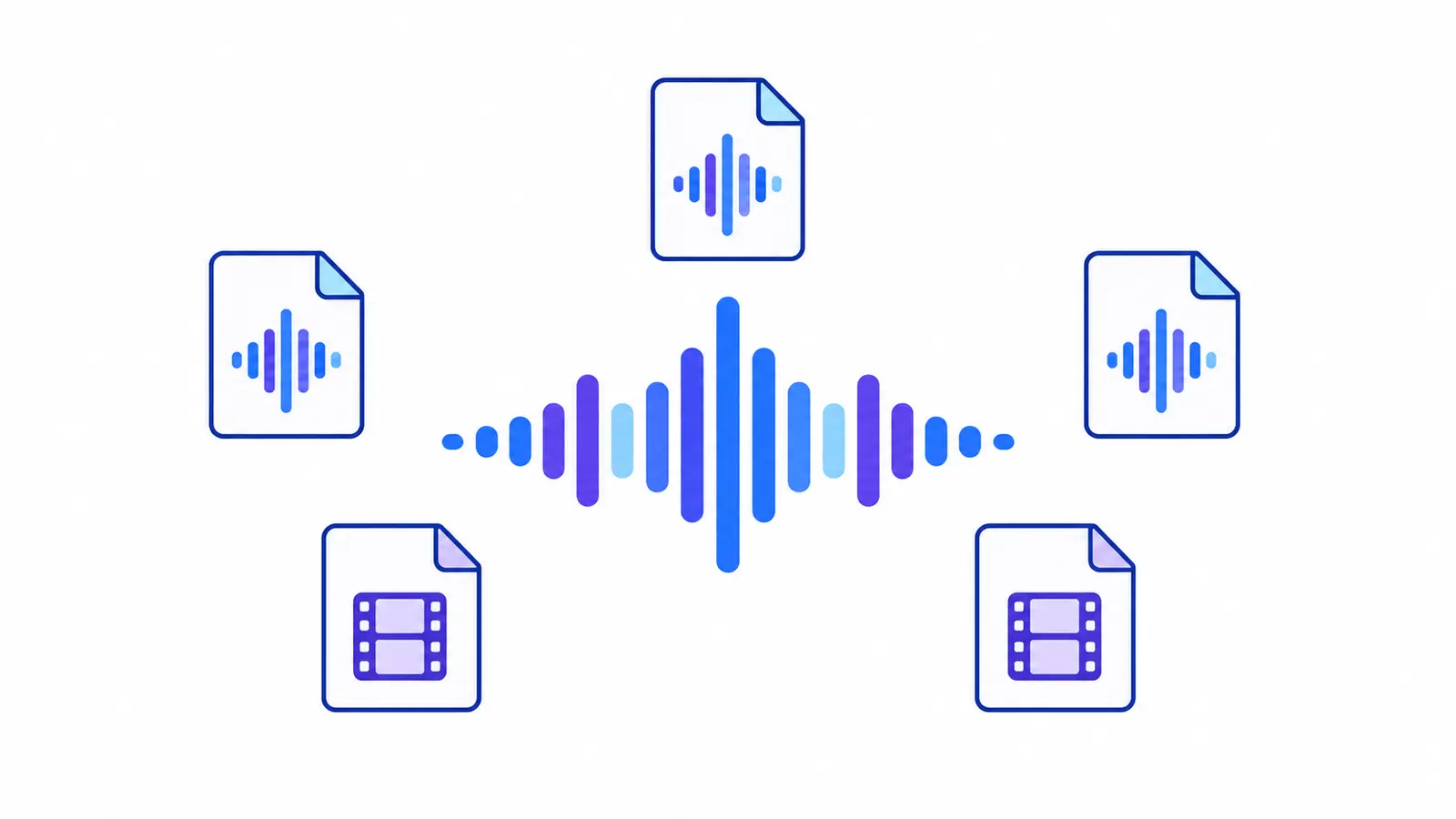
Voice recorder files are often saved in M4A, while audio from other programs might be in MP3, WAV, or OGG. On the "Audio to Text" page, MP3, WAV, M4A, OGG, and AAC are listed. The acceptance of a specific file also depends on its content and a correct audio track.
If you have an OPUS file or another extension not listed here, check the current upload form hint. Avoid unnecessary conversion: re-compressing with loss can degrade sound quality. When evaluating results, it's helpful to understand what affects speech recognition accuracy.
Popular Video Sources
Cameras, phones, and screen recording programs often create MP4, MOV, WEBM, AVI, or MKV files. These extensions are listed on the "Video to Text" page, which also explains that an audible audio track is needed for transcription.
Videos without voice or only with on-screen text won't provide speech text. If there are multiple tracks in the container, ensure the correct one is selected and audible during normal playback. Further steps are detailed in the guide on how to extract text from a finished video file.
Safe Error Diagnosis
First, open the file and check its duration and sound. Then compare the size with the current upload limit. Go through five questions in order: if the answer is "no," fix the issue and repeat the check.
Is the file playing?
YesCheck if the speech is audible.
NoRe-copy or export the recording from the source.
Is there audible speech in the recording?
YesVerify the duration.
NoSelect the track with the voice. If there are only captions, you need an OCR tool.
Does the duration match the original?
YesCompare the size with the upload limit.
NoGet a full copy: the file might have been cut off during transfer or export.
Is the size within the current limit?
YesCheck format support.
NoReduce the size of the copy or split the recording into meaningful parts.
Is the format listed in the service?
YesTry uploading the file. If there's an error, check codec compatibility.
NoConvert the copy to a clearly supported format. Keep the original.
If all checks are passed but the upload still fails, save a working copy in a clearly supported format and try again. Do not delete the original until the project is complete. For confidential recordings, use a locally approved conversion tool in your organization.
How to Check Format Support
Refer to the list next to the file upload and the explanations on the tool's page. A matching extension alone is not enough: codec, recording integrity, size, and audible speech are important.
| Source | On service pages | What to check |
|---|---|---|
| Audio | MP3, WAV, M4A, OGG, AAC | The file opens completely, speech is audible, size is acceptable. |
| Video | MP4, MOV, WEBM, AVI, MKV | The necessary audio track is present, its codec is compatible, voice is audible. |
If the system reports an error, save the text. This is more useful than repeatedly changing the extension manually: renaming does not change the container or codec. File compatibility is one of the criteria for choosing a transcription service.
Practical Checklist
- Check the format against the service's current list.
- Verify the sound quality and duration of the recording.
- Compare the size with the upload form's limit.
- Convert a copy while keeping the original file.
- Ensure you need speech transcription, not text recognition.
How to Complete a Task in Transkribator
On the "Audio to Text" page, upload your prepared recording and wait for the result. First, assess the overall meaning, then check names, numbers, and terms using the timestamps.
Download the TXT and continue editing in your usual tool. Keep the original until the review is complete, so you can return to any disputed section and listen to it again.
Key Points
- Extension and internal codec are not the same thing.
- Audible speech is needed for video transcription.
- Format support is checked against the service's current data.
- Keep the original until the work is finished.
Frequently Asked Questions
Why won't MP4 upload?
Possible reasons include an unsupported codec, file corruption, size exceeding the limit, or a missing audio track. Check the file using the steps above and save the exact error message if you need support assistance.
What is the best audio format?
The best format is one that is supported and preserves clear speech. An extension won't fix poor audio: converting a noisy recording to WAV won't recover lost words.
Can you transcribe video without speech?
Without speech, you can't get a transcription. For text in the frame, you need OCR — text recognition in images, not speech recognition.
Do I need to convert in advance?
No, if the original is supported. Conversion is used as a backup after checking the file. Changing the extension manually isn't enough: format change requires exporting or converting a copy.